

If you're a frequent visitor to Healthify, why not share our site with a friend? Don't forget you can also browse Healthify without using your phone data.
Telehealth
Answers to questions you might have about telehealth services
Key points about telehealth
- Telehealth or virtual healthcare provides a way of having a consultation with your doctor, nurse, psychologist or other healthcare provider without being in the same place. It’s sometimes called an e-consultation.
- Telehealth consultations can be by email, phone or video.
- Your first consultation may seem strange, that’s normal. As you do it more often you will start to feel more comfortable.
- The information on this page answers some of the questions you might have about telehealth consultations.
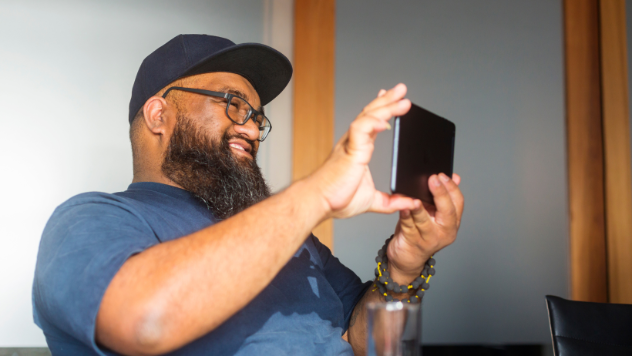
Telehealth is using communication technology to get care from your doctor, nurse or other healthcare provider without seeing them in person.
This might involve:
- talking over the phone
- sending messages through your patient portal
- emailing or texting your doctor, nurse or other healthcare provider
- a video call where you can see your healthcare provider and talk about your condition just as you would if you were in the same room
- monitors, wearables or implants which send information to your healthcare provider.
Sometimes this is called virtual healthcare or e-consultation.
- If you have difficulty getting to your appointments due to cost, time off work, mobility issues, living remotely or lack of transport options, telehealth can make it easier for you to get your healthcare needs met.
- If you have a communicable disease (one that can be passed on to other people) such as COVID-19, using telehealth helps to keep other people safe from catching that disease.
- If you have an urgent problem and it’s not so important that you see your own healthcare provider, appointments can be shared out across the country. This usually means shorter waiting times.
- You can get access to specialist providers not available in your area.
Internet based telehealth services are provided by private companies chosen for their high levels of privacy and security.
Since telehealth consults will take place from your own device and home environment, you can help keep yourself safe online.
Read the instructions on how to use the telehealth service and turn on all security and privacy features before you have your first virtual consultation. Some services may have a virtual waiting room so you can test the connection in advance.
If possible, close any other applications or web-browser windows before and during the consultation to avoid performance and security issues.
Yes, if you're seeing a healthcare provider at your practice or a private healthcare provider you'll still pay a consultation fee. The cost will be similar to usual consultation charges as it still takes staff time and knowledge.
If you're using a hospital-based telehealth service there won't usually be a charge.
Your medical centre
This is the best option for your health if it’s possible. Visit your medical centre website or patient portal to find out how to email or book appointments. Your medical centre may triage appointment requests. This means someone will talk with you to help decide what form of appointment will be best for you.
In most practices there will be options for having your consultation by secure email through your patient portal, or by phone or video call, as well as face-to-face appointments. What's available depends on the technology your healthcare provider uses. You can also request a telehealth consultation for your child.
You'll be sent an appointment time and instructions about how to login for video calls, or what time to expect a phone call. The medical team will try to be on time but, as you can understand, they're juggling lots and may be running late at times. Please be patient – they'll ring or log on to meet with you as soon as they can.
National telehealth service
Health New Zealand | Te Whatu Ora has a digital health service enabling you to see a New Zealand-registered GP or nurse practitioner online 24/7. Appointments are made online and you have a choice of provider.
If you use this service and have a regular healthcare provider they will be sent your online consultation notes so your records are kept up-to-date. If you don't have a regular healthcare provider you can use this service and they can help you enrol for future care.
The costs vary depending on your age and whether or not you have a Community Services Card (CSC)(external link). Book an appointment or find out more about the online service and the providers you can choose from on the Online GP care website(external link).
Ka Ora Telecare
This telehealth service is available for people living in or visiting rural communities in Aotearoa New Zealand. The service provides phone and video consultations. The Ka Ora service is available from 5pm to 8.30am on weekdays and around the clock (24 hours) at weekends and on public holidays.
You can book online or call on 0800 2KA ORA (0800 252 672). Find out more on the Ka Ora Telecare website.(external link)
Private providers
Many private healthcare providers operate telehealth services in Aotearoa New Zealand. You can find these providers through an internet search. You can use information about which services they offer, and word of mouth or online feedback about the quality of their service to help you decide which one to use. One sign of a good service is that they should offer to send a record of your consultation back to your usual healthcare provider if you have one, which is important for your ongoing health care.
It’s important to check they’re medical professionals registered in Aotearoa New Zealand. If not, there is no quality protection through the Medical or Nursing Council of New Zealand and they can't legally write prescriptions.
If you have a straightforward question, you may find the email option works best. This might include checking something that your doctor or nurse said to you at a recent consultation, or getting a repeat of your medicine when you don't need a consultation. You can write your email and read your doctor or nurse’s reply at a time that suits you. Email won’t work well if there needs to be a back and forth conversation.
Phone or video
If you need to discuss something in more detail, then a phone or video call at an agreed appointment time will be a better option.
- A phone consultation is a good choice if:
- you have poor cell or wifi coverage
- you’re going to be travelling
- you're in a public place, or
- if video technology is difficult for you.
- A video consultation would be best if your healthcare provider is likely to need to ask you to show them something, or to get you (or someone in your home) to do something. Examples of times when a video call would work better are if:
- you have a skin rash they need to look at
- they need you to check your pulse
- they want to show you how to do an exercise.
- Video consultations can also give better personal connection and communication, especially if you and the healthcare provider haven’t met before.
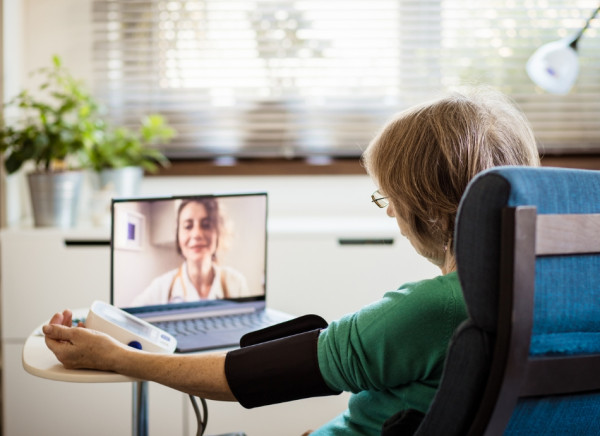
Image credit: Depositphotos
Emergencies and problems which need a physical examination are not suitable for telehealth. Each healthcare provider will make their own decisions about whether your problem is safe to manage virtually or whether you need to come in for a face-to-face consultation. However, some conditions are better suited than others to video consultations.
Telehealth consultations are usually suitable for:
- colds and flu
- sinus, ear, eye, skin or bladder infections
- sore throat
- allergies
- rashes
- constipation or diarrhoea
- headaches (except sudden severe headaches)
- mood and anxiety problems
- follow up of some injuries (eg, needing a medical certificate extended or back to work clearance)
- follow up for WINZ medical certificates (with your usual healthcare provider)
- off work certificates (if you're not seriously unwell)
- ongoing monitoring of many long-term or ongoing conditions with your usual healthcare provider (arthritis, diabetes, heart disease etc)
- repeat prescriptions, medicine side effects, dose changes, questions about new medicines.
Telehealth consultations are not recommended for:
- breathlessness
- sudden or severe chest pain
- actively bleeding or deep wounds
- psychosis or delusions
- suicidal thoughts
- persistent vomiting
- severe abdominal (tummy/puku) pain
- not being able to control bowel movements (pooing) or urination (peeing)
- severe headache or giddiness
- sudden onset numbness, weakness or slurred speech
- fainting spells
- suspected broken bones
- injuries causing severe pain, open wounds, severe bruising or swelling, loss of sensation, limb weakness etc
- sudden loss of vision
- heavy periods
- sexually transmitted infections
- complex medical conditions.
Preparing for an email consultation
- Most healthcare providers will use the email function of your patient portal as it's more secure than normal email. Make sure you're registered with the patient portal for your general practice. See this guide to patient portals(external link) to help you with this.
- If you use online banking or other online functions you'll find this easy to use. Ask whānau for help. Make sure you keep your password secure and do NOT share it with anyone else.
- Once you're registered, make sure you know how to log in and find the 'Send a message' section within the portal.
- Most medical centres have a policy about how long it should take for your healthcare provider to reply to your portal email. This should be written on the screen where you send your email, or arrive after you press send.
Preparing for a phone consultation
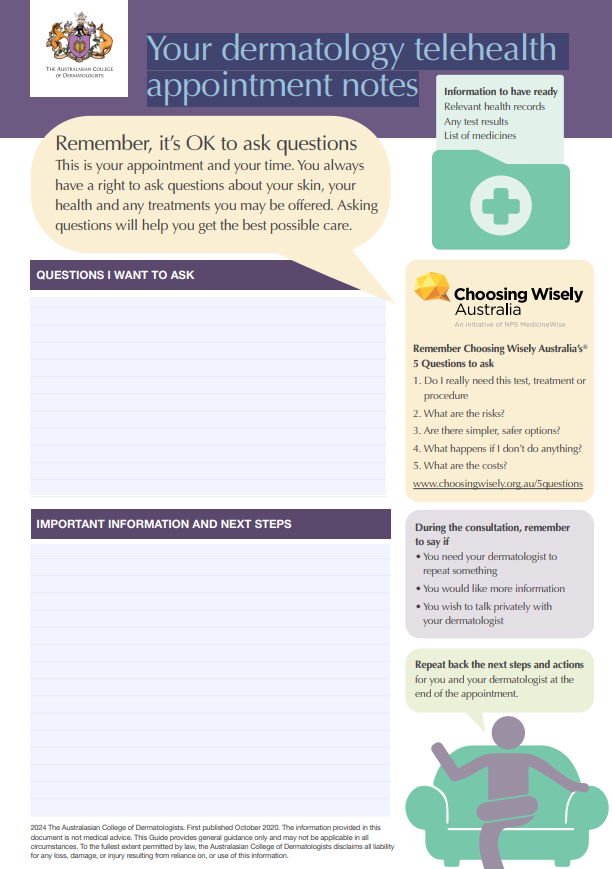
Write down the questions you want to ask your doctor, nurse or other healthcare provider. Also write down a list of all your medicines and supplements or have them with you. Have pen and paper ready to write down any advice or other information you may need to.
Your healthcare provider will call you at the approximate appointment time at the number you’ve given. Make sure you're near the phone you gave the number for. Make sure you're in a quiet and private place so you can talk freely and can hear well. If you're using a mobile phone, make sure it's charged beforehand.
Preparing for a video consultation
Write down the questions you want to ask your doctor, nurse or healthcare provider. Also write down a list of all your medicines and supplements or have them with you. Think about which pharmacy would suit you to pick up any medicines from. Have pen and paper ready to write down any advice or other information you may need to.
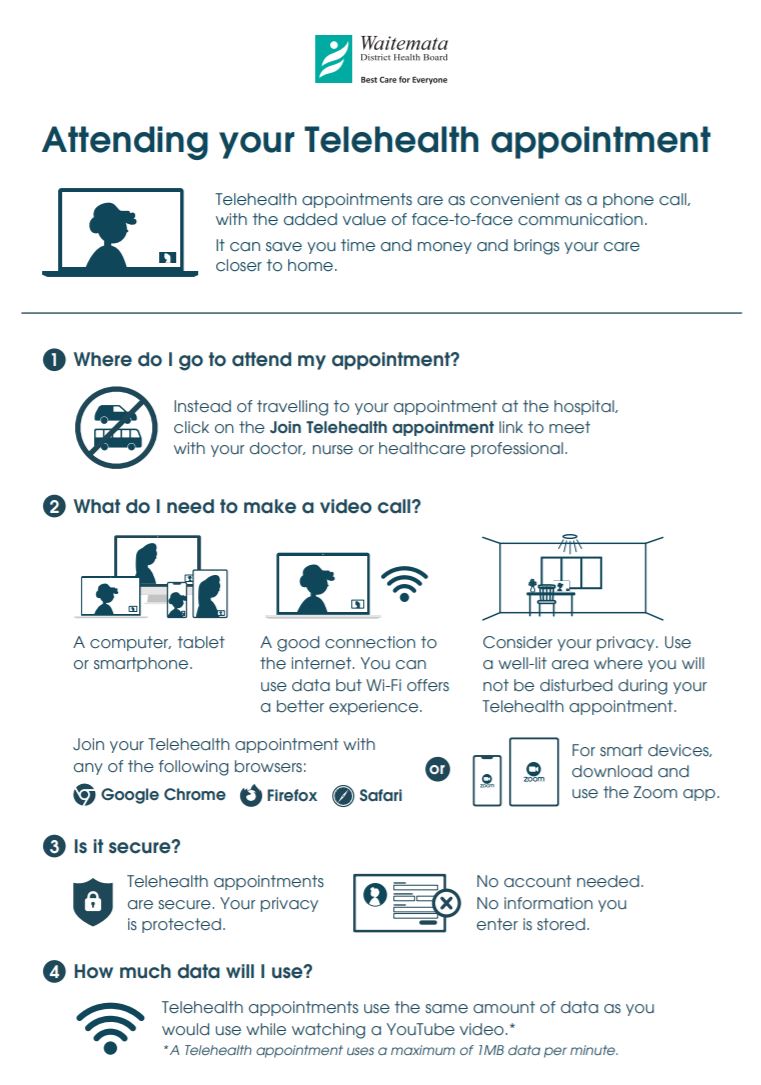
- Your healthcare provider will send you a video link to the platform they're using for video calls. This may come by email or text. You will need to click on this link. Take care that the link is the one you were expecting from your healthcare provider.
- A computer or laptop is better than a hand-held device because you’ll have your hands free if you need to show them something on your body or do something such as take your pulse or write down instructions. If you have a smart phone, find a way to prop it up.
- You can test out most video consultation platforms first, so allow plenty of time before your appointment to check that your link works and you can access the service.
- Make sure your audio and video are working. On the device you're using, test the sound (audio) and video (image). If you have any trouble with the audio, you may find that headphones work better. Get someone from your whānau to help you if you need to.
- Decide where you will have the consultation. Choose a quiet, private place where you have access to a strong internet connection. If possible, use a device that is wired for fast internet. Otherwise check you have a strong wifi signal.
- Make sure that there is no one else streaming information from linked devices while you’re having your consult. If someone is watching a video on the wi-fi network you're using, your video may be poor quality.
- Make sure your device is charged or your computer plugged in.
- A few minutes before your appointment, click on the link you’ve been sent. Some systems will take you to a virtual waiting room. Your health provider will join you when they're ready. While you're waiting, check that you have turned on your audio and video.
- You may want to have a whānau member or friend with you. That’s fine – just tell the healthcare provider when you join that they're there.
Video: Checklist for preparing for your video consult
Here's a video explaining how to prepare for your telehealth consultation.
Preparing for an email consultation
- Most healthcare providers will use the email function of your patient portal as it's not secure or safe to use normal email. Make sure you're registered with the patient portal for your general practice. See this guide to patient portals to help you with this.
- If you use online banking or other online functions you'll find this easy to use. If not, it's easy to learn and worth the effort of getting set up. Ask whānau or the clinic for help. Make sure to keep your password secure and do NOT share with anyone else.
- Once you're registered, make sure you know how to log in and find the 'Send a message' section within the portal.
Preparing for a phone consultation
Your healthcare provider will call you at the approximate appointment time at the number you have given. Make sure you're by the phone you gave the number for. Also make sure you're in a quiet and private place so you can talk freely and can hear well. If you're using a mobile phone, make sure it's charged beforehand.
Preparing for a video consultation
- Your healthcare provider will send you a video link to the platform they're using for video calls. This may come by email or text. You will need to click on this link. Take care that the link is the one you were expecting from your healthcare provider.
- Click on the link from the device you're using for your video consult. A computer or laptop is better than a hand-held device because you will then have your hands free if you need to show them something on your body or do something they ask you to do, eg, take your pulse or write down instructions.
- You can test out most video consultation platforms first, so check in plenty of time before your appointment that your link works and you can access the service.
- You also need to make sure your audio and video are working. On the device you're using, test the sound (audio) and video (image). If you have any trouble with the audio, you may find that headphones work better. Get someone from your whānau to help you if you need to.
- Decide where you will have the consultation. Choose a quiet, private place where you have access to a strong internet connection. If possible, use a device that is wired for fast internet. Otherwise check you have a strong wifi signal.
- Make sure your device is charged or your computer plugged in.
- A few minutes before your appointment, click on the link your doctor, nurse or other health provider has sent you. Some systems will take you to a virtual waiting room. Your health provider will join you when they are ready. While you're waiting, check that you have turned on your audio and video.
They can't see me
Check again that you have turned on your device's camera. Look for a symbol on your screen that looks like a video camera. If it has a line through it, it’s not on. Click on it to turn it on.
Video on:
Video off:
They can't hear me
Check again that your mic is working. Look for a symbol on your screen that looks like a microphone. If it has a line through it, it’s not on. Click on it to turn it on.
Mic on: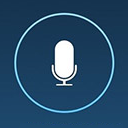
Mic off:
Photos can help your healthcare provider diagnose skin and other health conditions. The photos can be kept in your medical record and may help with managing your health condition over time. If you need a specialist appointment, the photos can be sent to the specialist.
Here are a few simple tips to help you get good photos. You don't need to be a professional photographer.
Set up for the photos
- Find a suitable private location.
- Get help from someone if you can't reach the location on your body or get a good angle for the photos.
- Try to use a plain background such as a white sheet or pillowcase, a plain wall or a plain carpet.
Take the photos
Make sure there's good lighting. If necessary, use a flash. Including a ruler or measuring tape in the close-up photos may be helpful, eg, it can show the size of skin lesions.
You might need:
- an overview shot showing the location of the condition
- a close-up, usually at a distance of about 20 cm
- a whole body shot showing how much of your body the condition affects.
Make sure the photos are well-focused
To focus the camera lens on a specific area, point the camera at the object or rash you want to photograph and tap the touch screen where you want it to focus.
Reduce camera shake by holding the camera or part of your arm against a solid object such as a couch, chair or wall.
When you've taken the photo, check its focus by enlarging the image on the screen. A well-focused image will stay sharp when it's enlarged. Make sure the area with the condition is clear. If the photo isn't well-focused, take another one.
Send the photos
- Ask your healthcare provider about the best way to send your photos. This might be via their patient portal or by email. Unless told otherwise, don't send your photos to the healthcare provider's general email address. These emails may be seen by non-medical staff.
- Send 2 or 3 really good photos rather than lots of poorer quality ones.
- A good photo size is between 100 KB and 1 MB. This is often the 'large' option when sending a photo from a phone. This is a resolution of about 1200 x 900 or 1 megapixel.
- Make sure you include the name and date of birth of the person the photos are of. This is especially important if you're sending photos of someone else, such as your child.
- Keep the photos on your phone until you're sure they've arrived at the destination.
Videos
A short video can help show seizures, tremor and other movement problems. Ask your healthcare provider about the best way to send them your videos. Video files are usually too large to send by email or patient portal. However, you may be able to upload them to cloud storage such as Google Drive or Microsoft OneDrive and share the link with your healthcare provider.
Ka Ora Telecare(external link) – rural non-emergency after hours telehealth service
Online GP Care(external link) Health New Zealand | Te Whatu Ora, NZ, 2025
Brochures
Telehealth – consumer checklist [PDF, 282 KB] Telehealth consumer checklist
Attending your Telehealth appointment Waitematā DHB, NZ English,(external link) Simplified Chinese,(external link) Korean,(external link) Hindi,(external link) Japanese,(external link) Tagalog,(external link) Samoan(external link)
Your dermatology telehealth appointment notes(external link) The Australasian College of Dermatologists
Get the care you need, when you need it – 24/7(external link) Health New Zealand | Te Whatu Ora, NZ, 2025
Apps
Telehealth and virtual consultation apps
Patient portal apps
References
- Specialist GP telehealth consultations position statement(external link) Royal New Zealand College of General Practitioners, 2024
- Your guide to telehealth in New Zealand(external link) NZ Telehealth Forum and Resource Centre

Brochures
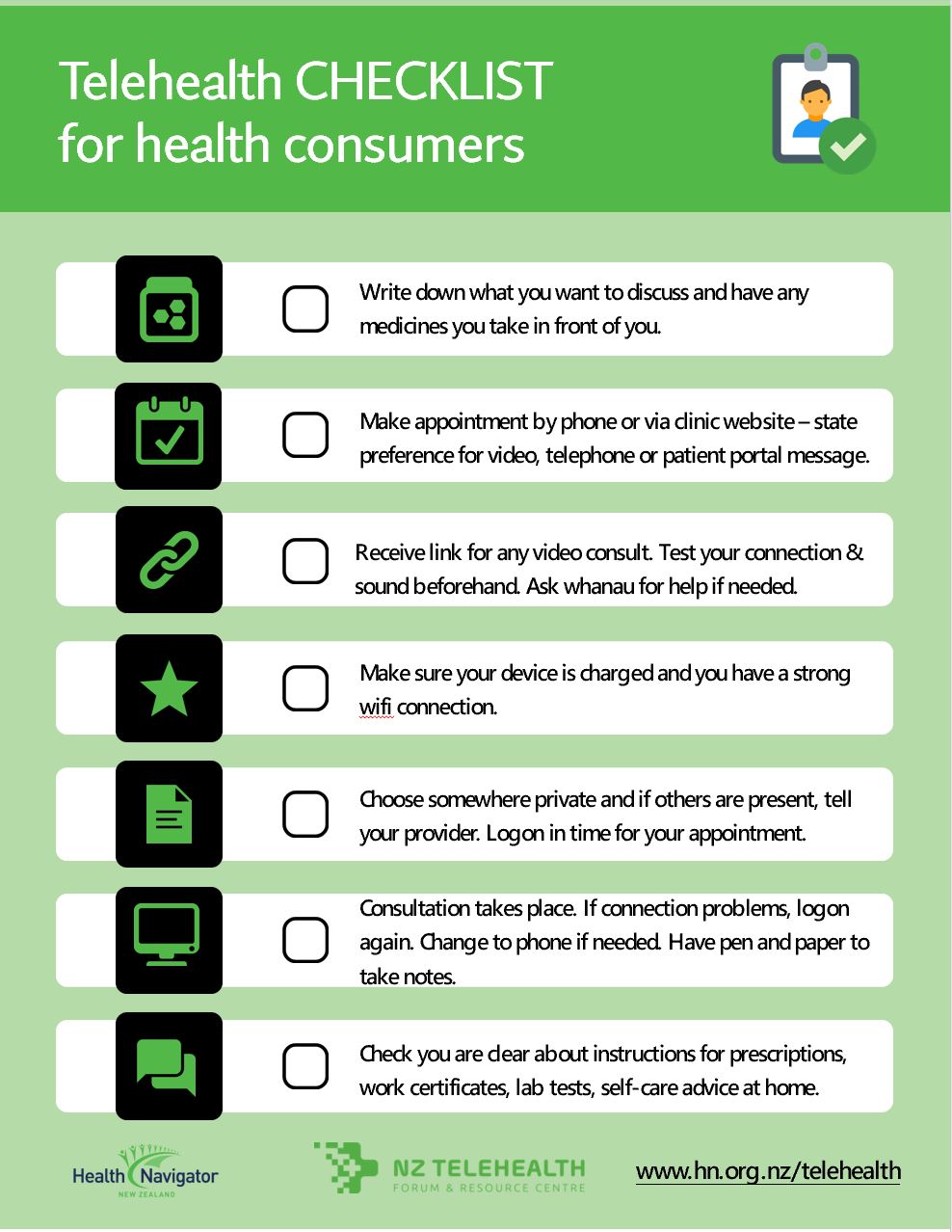
Telehealth consumer checklist
NZ Telehealth and Healthify He Puna Waiora, NZ
Your dermatology telehealth appointment notes
The Australasian College of Dermatologists
Need help now?

Credits: Healthify editorial team. Healthify is brought to you by Health Navigator Charitable Trust.
Reviewed by: Dr Emma Dunning, Clinical Editor and Adviser
Last reviewed: